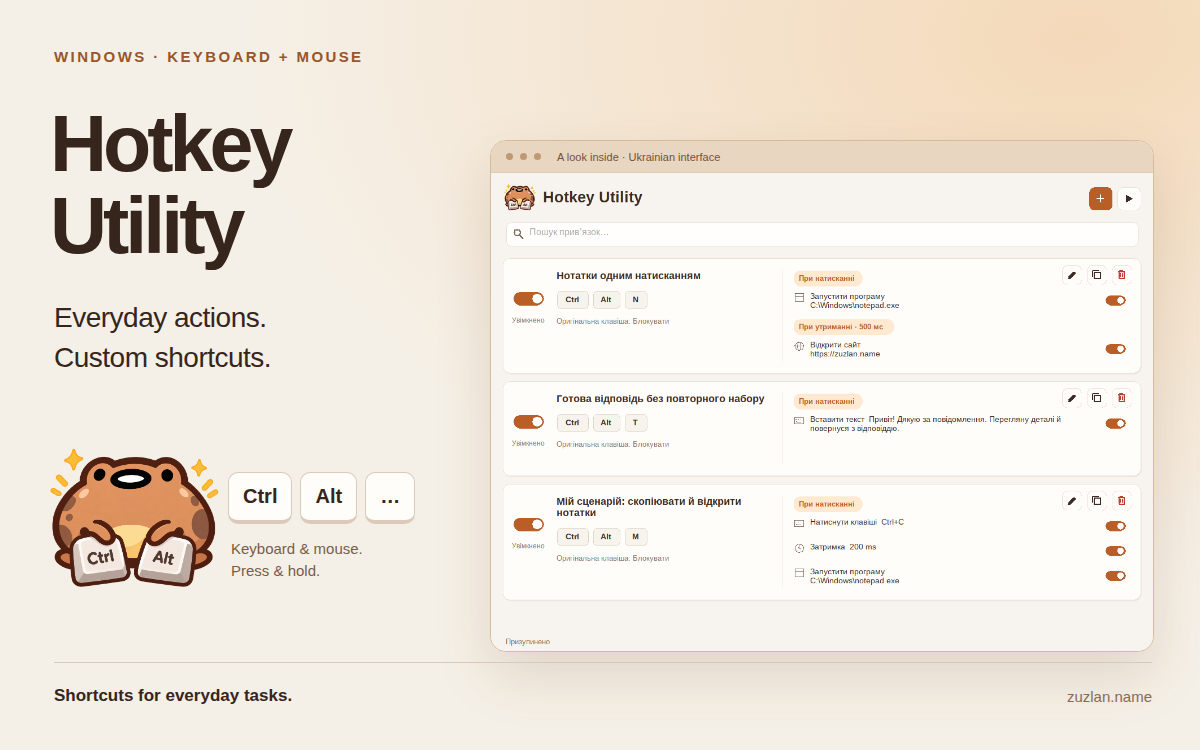
Shortcuts for everyday tasks
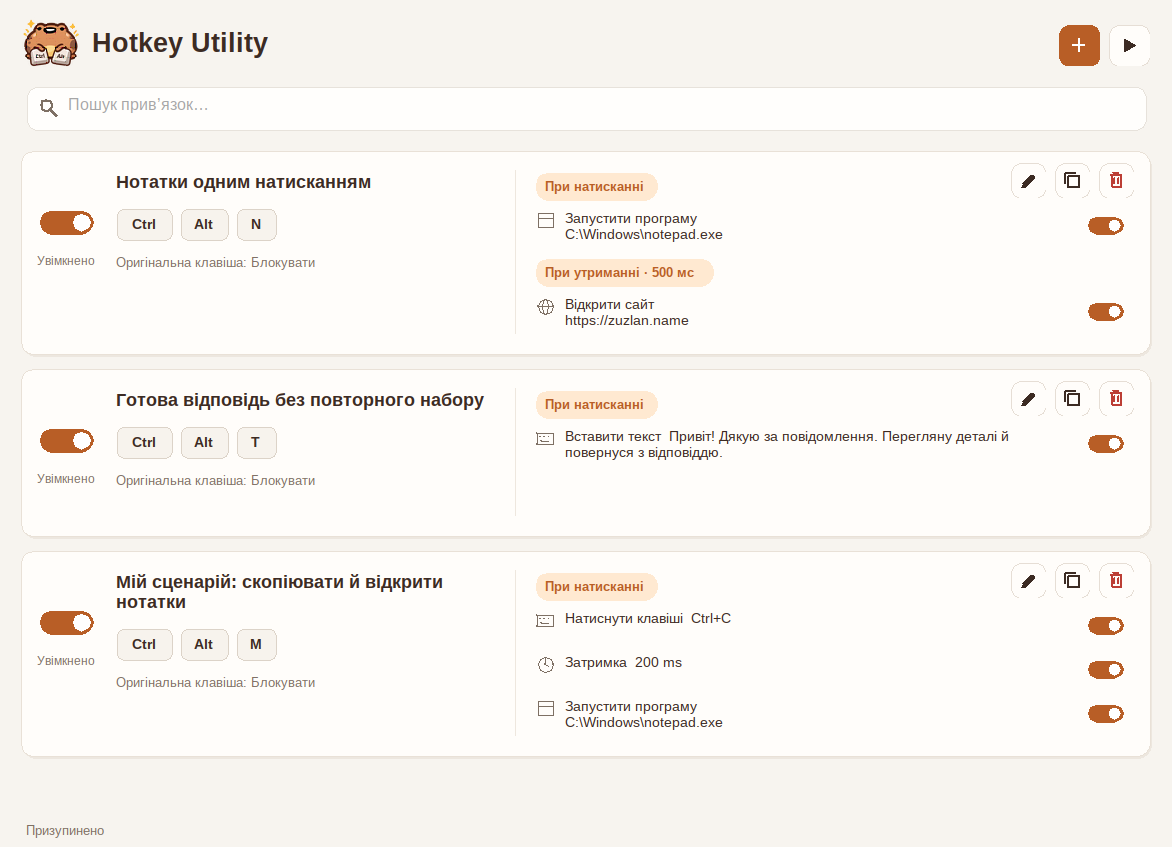
Assign a key, a mouse button or a combination to the things you repeat: opening an app or website, entering a saved reply, sending a key combination or clicking a particular point. Text templates are inserted without replacing your clipboard contents.
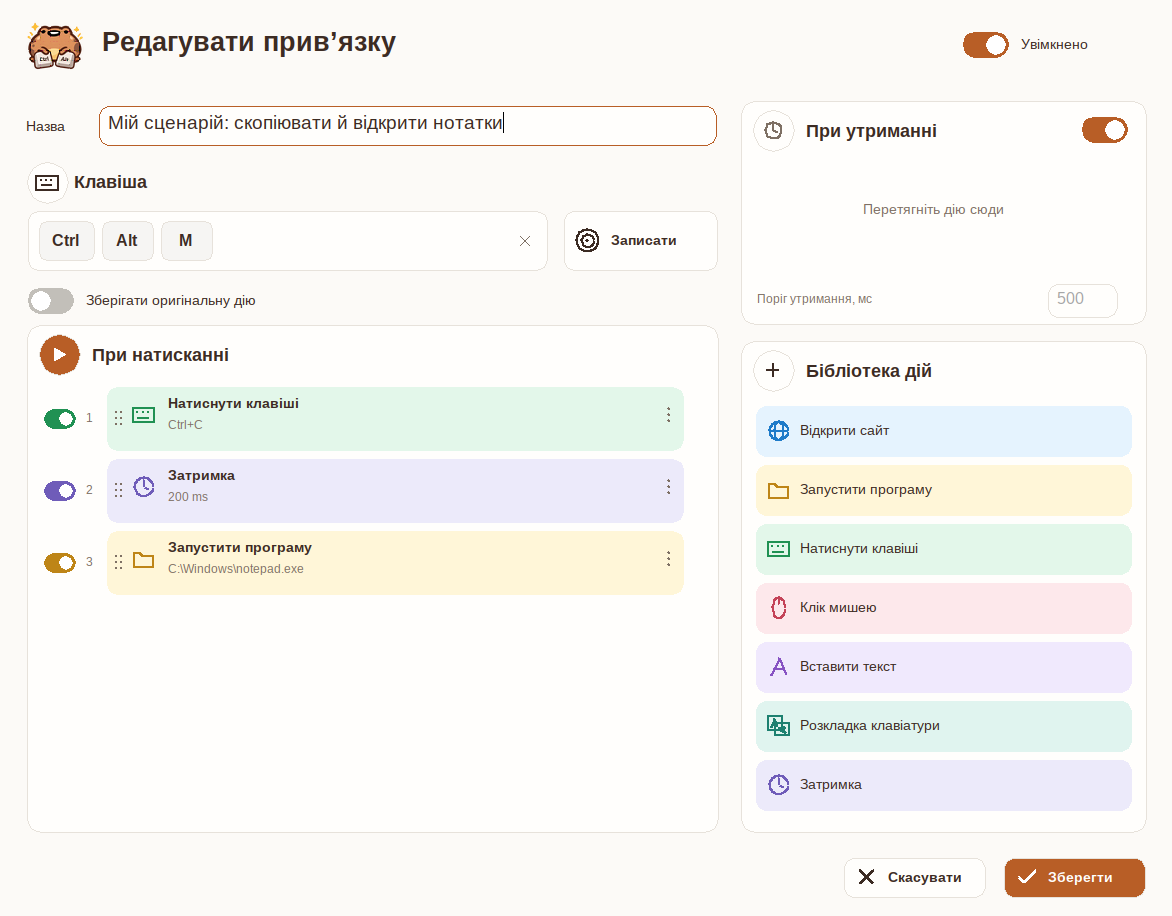
Need several steps? Put them in order and add a delay where an app needs time to open. You can also bring an existing app window to the front instead of launching another copy.
Separate actions for a press and a hold
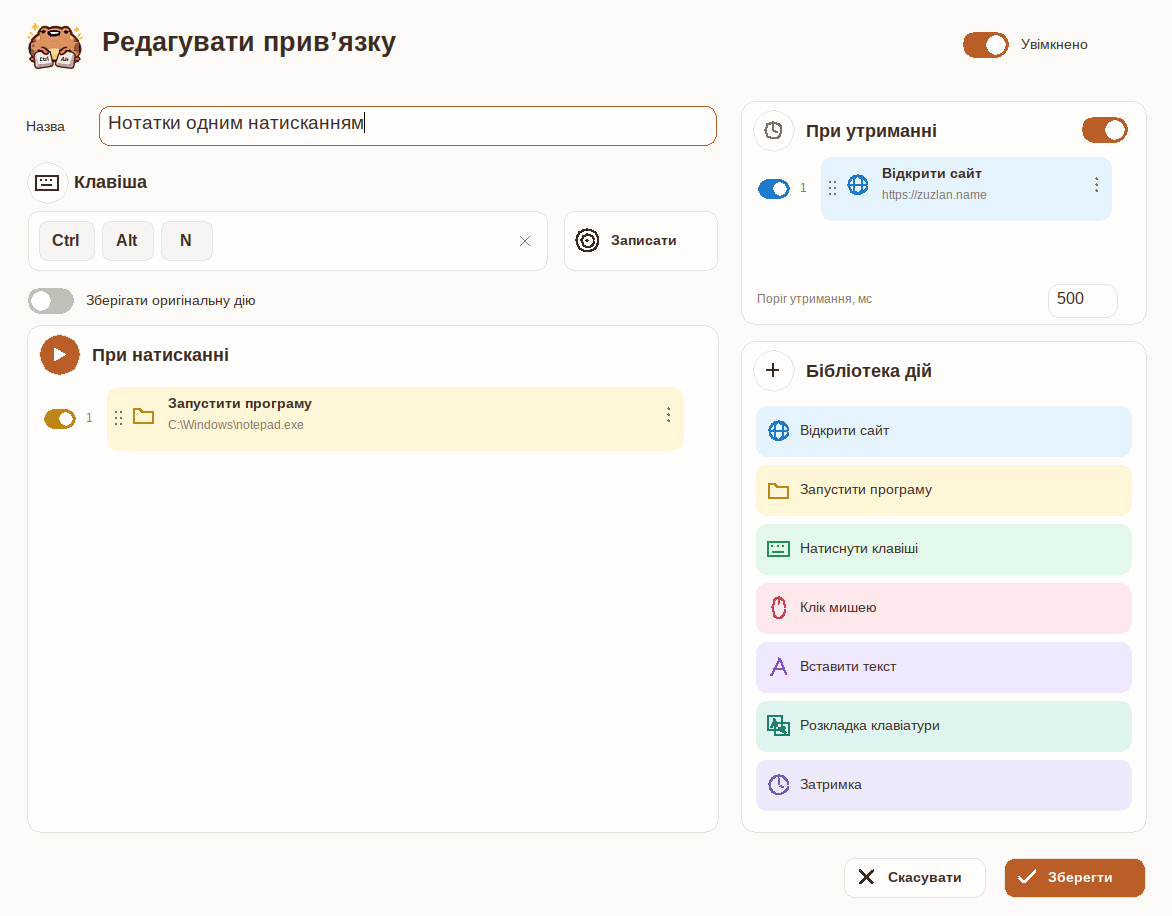
Give a short press one sequence and a hold another. For example, the same combination can open your notes with a tap and a chosen website with a hold. With both configured, the short-press sequence runs when you release the shortcut.
The editor keeps both sequences visible. Add actions from the library, drag them into order and switch individual steps on or off.
Keyboard layouts and shortcut management
Switch to a chosen keyboard layout or return to the previous one. Find shortcuts by name, combination or action text, and use compact mode when your collection grows.
The utility can stay in the Windows notification area and start with Windows if you choose. Pause shortcuts from the window or tray; Ctrl+Alt+Backspace stops running and queued actions and pauses the utility.
Windows compatibility and setup
Hotkey Utility runs on Windows 10 and 11, 64-bit. The interface supports English, Ukrainian, Georgian, Catalan, Spanish, French and German. The screenshots show the Ukrainian interface with example shortcuts.
Download the EXE, choose its installation folder on first launch and create your first shortcut. Automatic updates are enabled by default and can be turned off in Options. Apps running as administrator and Windows-reserved shortcuts can limit automation.